Bench Hardware ~ Raspberry Pi 3B+
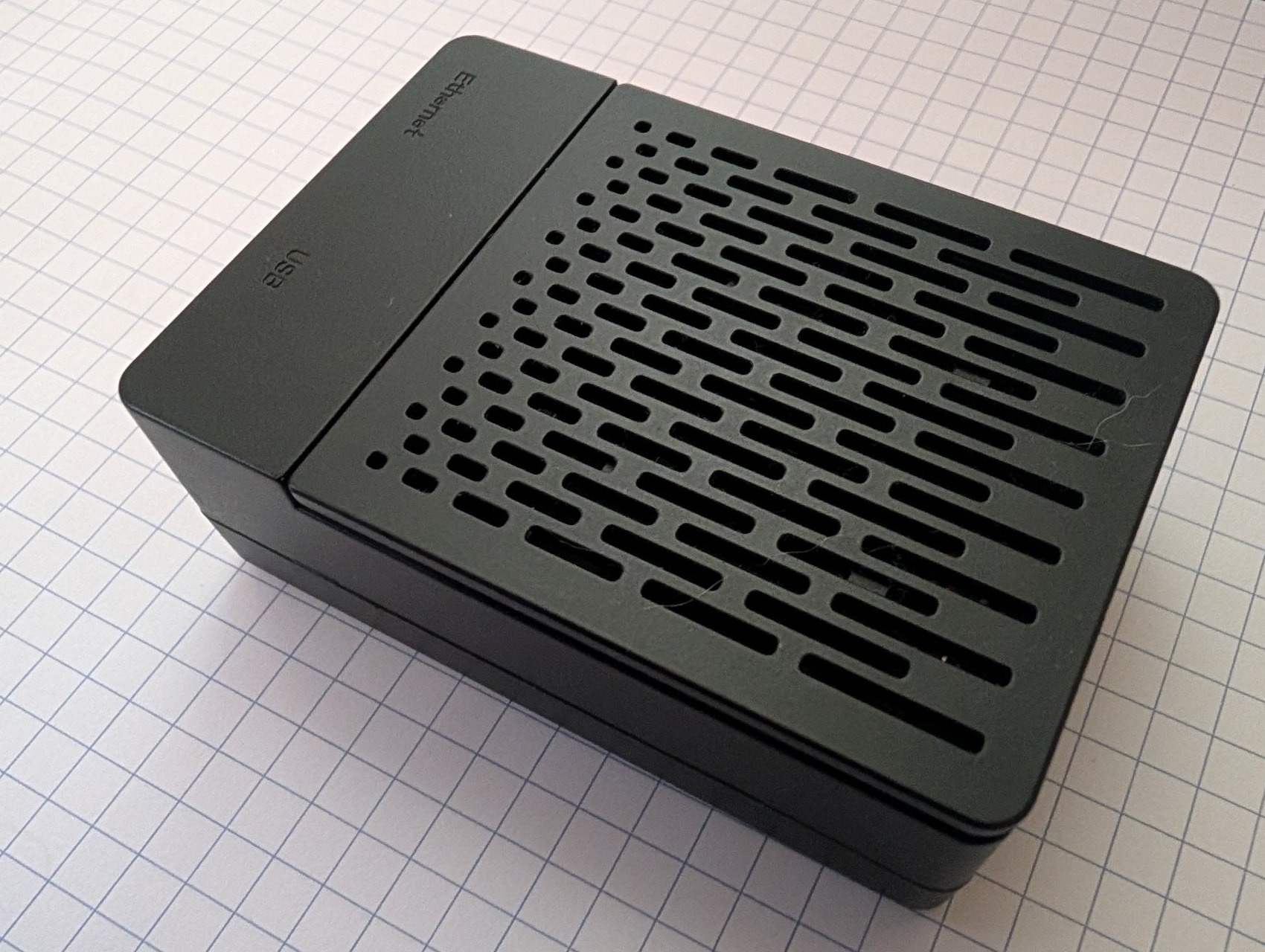
The Raspberry Pi 3B+ is a decent little SBC that I have used for robot projects in the past. It was the brain of YAM for a while, running ROS on Ubuntu with MATE Desktop.
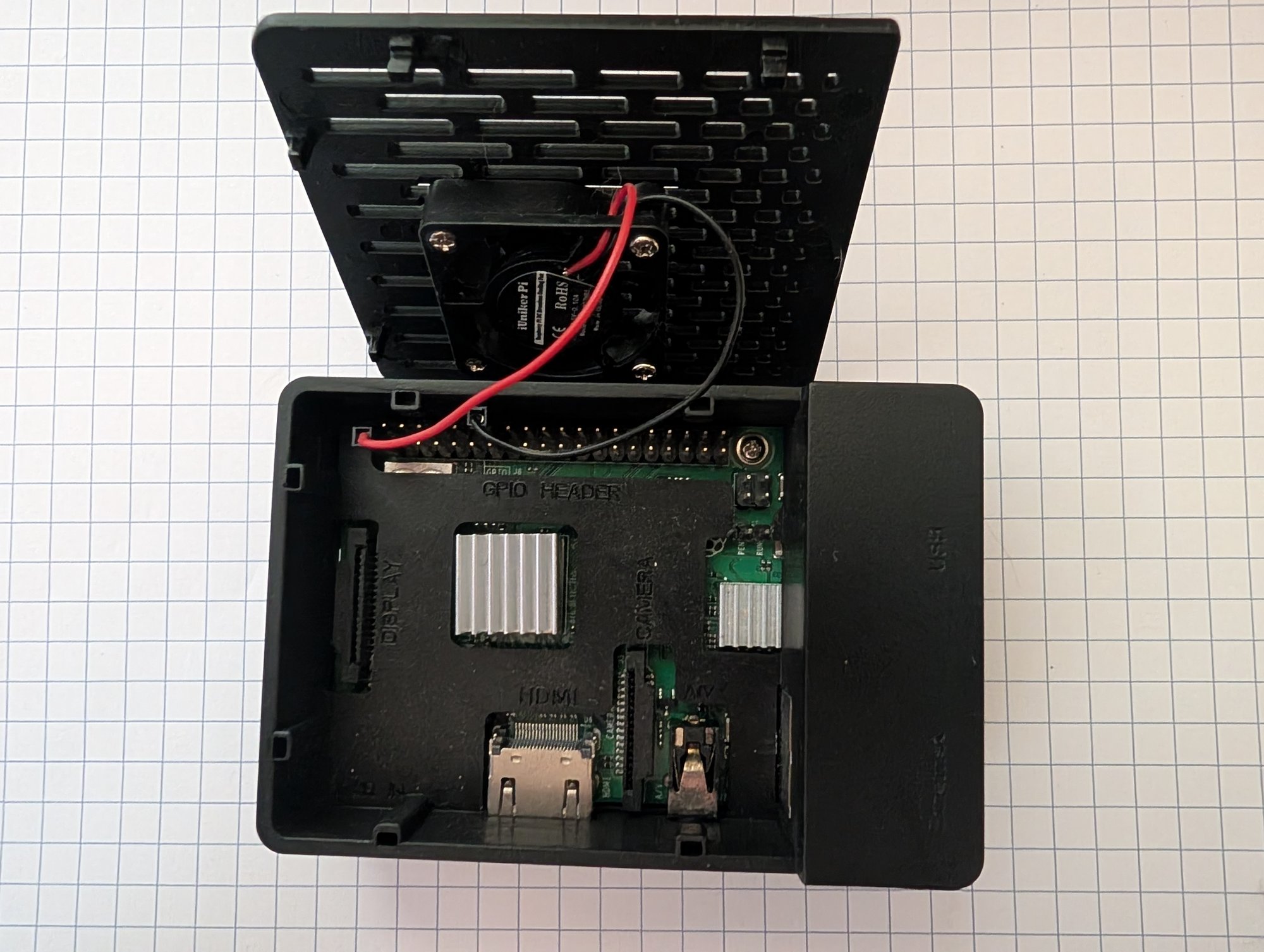
The Prusa bridge
It used to be the Wi-Fi bridge for my Prusa Mini, running the same Ubuntu MATE image as old YAM. That got the printer off USB, where one specific flash drive with a metal jacket kept heating up and corrupting print files, sending the printer erratic and plunging the head into parts. Other drives seemed fine. Sending prints over the network was fine too, and preferable, since the printer sends telemetry back.
BEADZ
Now it runs a vision-language model (VLM) for my BEADZ project. A VLM is an AI model that looks at an image and answers questions about it in text. On the Pi that’s SmolVLM, a 500M parameter model, running under llama.cpp’s llama-server, looking at an hourly photo of a jar filled with beads in a cardboard box. The Pi only has 1 GB of RAM, so the server can’t stay resident (there is not much memory on the poor thing). It spins up fresh for each capture and gets killed right after.
It runs Raspbian Lite, command line only, headless (I SSH in).
Handy Pi tricks
A few bits from the Pi’s past lives that are worth capturing.
Know the IP without a monitor. YAM’s Pi ran a little Python script at boot that printed its IP address on a 128x32 OLED, so I could SSH in without hunting for it. The script is in the YAM repo.
raspberry_pi_firmware.py
#!/usr/bin/env python

import time
import socket
import Adafruit_SSD1306
import RPi.GPIO as GPIO

from PIL import Image
from PIL import ImageDraw
from PIL import ImageFont

from subprocess import call


DEFAULT_LOOP_TIMESTEP = 0.25
DEFAULT_FILTER_LENGTH = 4
SHUTDOWN_DISPLAY_TIME = 2

# Raspberry Pi pin configuration:
RST_PIN = 24 		# Unused - but would reset the OLED interface
I2C_SDA_PIN = 2 	# OLED Comm
I2C_SCL_PIN = 3 	# OLED Comm
SHUT_OFF_PIN = 4 	# Input to command shutdown
ACTIVE_PIN = 17 	# Used to detect OS running


class RaspberryPiFirmware:

	def __init__(self, loop_time_step=DEFAULT_LOOP_TIMESTEP, filter_length=DEFAULT_FILTER_LENGTH):
		self._loop_time_step = loop_time_step
		self._shutoff_filter = [0]*filter_length

		self._current_ip_address = self._get_ip_address()

		self.display_setup()
		self.print_ip_address(self._current_ip_address)

		GPIO.setmode(GPIO.BCM)
		GPIO.setup(SHUT_OFF_PIN, GPIO.IN)
		GPIO.setup(ACTIVE_PIN, GPIO.OUT)

		# Set active as soon as script starts
		GPIO.output(ACTIVE_PIN, 1)

	def _get_ip_address(self):
		ip_address = socket.gethostbyname(socket.gethostname())
		return ip_address

	def display_setup(self):
		# 128x32 display with hardware I2C:
		self._disp = Adafruit_SSD1306.SSD1306_128_32(rst=RST_PIN)

		try:
			# Initialize library.
			self._disp.begin()

			# Clear display.
			self._disp.clear()
			self._disp.display()

			# Create blank image for drawing.
			# Make sure to create image with mode '1' for 1-bit color.
			self._width = self._disp.width
			self._height = self._disp.height
			self._image = Image.new('1', (self._width, self._height))

			self._padding = 2
			self._top = self._padding
			self._bottom = self._height - self._padding

			# Get drawing object to draw on image.
			self._draw = ImageDraw.Draw(self._image)

			# Draw a black filled box to clear the image.
			self._draw.rectangle((0,0,self._width,self._height), outline=0, fill=0)

			# Load default font.
			self._font = ImageFont.load_default()
		except:
			pass

	def print_ip_address(self, address):
		try:
			# Draw a black filled box to clear previous text
			self._draw.rectangle((0,0,self._width,self._height/2), outline=0, fill=0)

			# Write IP Address
			self._draw.text((self._padding, self._top), 'IP: {0}'.format(address),  font=self._font, fill=255)
			print self._get_ip_address()

			# Display image.
			self._disp.image(self._image)
			self._disp.display()
		except:
			pass

	def shutoff_command(self):
		try:
			# Draw a black filled box to clear previous text
			self._draw.rectangle((0,self._height/2,self._width,self._height), outline=0, fill=0)

			# Write Shutdown
			self._draw.text((self._padding, self._height/2 + self._padding), 'Shutting Down',  font=self._font, fill=255)

			# Display image.
			self._disp.image(self._image)
			self._disp.display()

			time.sleep(SHUTDOWN_DISPLAY_TIME)

			# Draw a black filled box to clear screen
			self._draw.rectangle((0,0,self._width,self._height), outline=0, fill=0)

			# Display image.
			self._disp.image(self._image)
			self._disp.display()

		except:
			pass

		# Acknowledge shutting off Pi
		GPIO.output(ACTIVE_PIN, 0)

		# Command PI to shutdown
		call("sudo shutdown now", shell=True)

	def spin(self):
		try:
			while True:
				time.sleep(self._loop_time_step)

				# Read shutoff pin, add to buffer and see if should shut off
				self._shutoff_filter.append(1 if GPIO.input(SHUT_OFF_PIN) else 0)
				self._shutoff_filter.pop(0)
				if (sum(self._shutoff_filter) / len(self._shutoff_filter)) >= 0.75:
					self.shutoff_command()
					break

				# Check IP address
				ip_address = self._get_ip_address()
				if ip_address != self._current_ip_address:
					self._current_ip_address = ip_address
					self.print_ip_address(self._current_ip_address)

		except:
			GPIO.cleanup()


if __name__ == "__main__":
	node = RaspberryPiFirmware()

	node.spin()
Keep scratch files off the SD card. Mount /tmp in RAM, so temporary files stop wearing out the card:
sudo cp /usr/share/systemd/tmp.mount /etc/systemd/system/
sudo systemctl enable --now tmp.mount
findmnt -n -t tmpfs /tmp
The last line prints a result only if /tmp really is tmpfs, which makes it a handy check to run before anything writes there.
Webcam stills. Put the user in the video group, list what the camera can actually do, then grab a frame at a mode it supports:
sudo usermod -aG video $USER
v4l2-ctl --list-formats-ext
fswebcam -r 1280x720 frame.jpg
Build llama.cpp on the Pi itself. It builds from source with NEON on the Pi. I keep the build to two jobs on a 1 GB board:
git clone --depth 1 https://github.com/ggml-org/llama.cpp
cmake -S llama.cpp -B llama.cpp/build -DCMAKE_BUILD_TYPE=Release \
    -DLLAMA_CURL=OFF -DLLAMA_BUILD_TESTS=OFF -DLLAMA_BUILD_EXAMPLES=OFF
cmake --build llama.cpp/build --target llama-server -j2